
Arooj Ishtiaq
Thu Jan 22 2026
7 mins Read
Creating AI videos has never been this easy and this powerful, and with PixVerse V5.5 on ImagineArt, the video generation game is altogether different. PixVerse’s newest version generates fully polished videos with built-in audio, perfect lip sync, and cinematic camera work.
PixVerse V5.5 Highlights
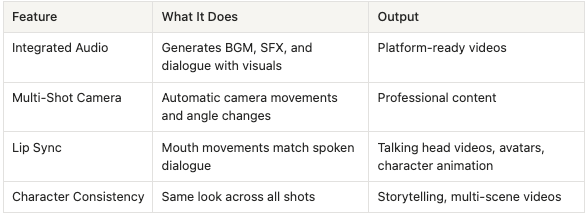 PixVerse V5.5 Highlights
PixVerse V5.5 Features
PixVerse V5.5 stands out by delivering both realistic and animated video generations quickly and at an affordable cost. This combination of speed, quality, and value is its key advantage for creators and marketers.
Integrated Audio-Visual Generation
V5.5 produces audio and video as a unified output. The system analyzes your prompt and generates both components simultaneously rather than treating them as separate tasks.
All three audio elements synchronize automatically with the visuals because the AI generates them together. The background music doesn't accidentally clash with the action. Sound effects happen exactly when the corresponding visual action occurs, and dialogue matches the character's lip movements frame by frame.
This integration removes the need for the entire audio post-production workflow. You get a finished video with a complete sound design ready to publish. You don't need a separate music search, manual sound effect placement, or dialogue recording and syncing.
- The system matches background music to the scene’s mood and pacing.
- Sound effects sync naturally with on-screen actions.
- Characters deliver dialogue with accurate timing and expression.
Benefits:
- You don’t need separate audio editing software.
- You save time by skipping music library searches.
- The system handles synchronization automatically.
Multi-Shot Cinematic Camera Work
The system automatically breaks scenes into multiple camera shots rather than producing a single continuous take. This creates visual variety and professional pacing similar to directed video content.
When you describe a scene, PixVerse V5.5 determines how many shots to use and what type each should be. An establishing shot might show the full environment. A medium shot focuses on the main subject, and close-ups highlight important details or reactions. The system adds camera movements like push-ins for dramatic emphasis or pull-backs to reveal context.
Transitions between shots flow smoothly without jarring cuts. The pacing adjusts to match the scene's requirements, e.g., action sequences get quicker cuts, thoughtful moments use longer, steadier shots. This dynamic shot construction makes content more engaging than static single-angle clips.
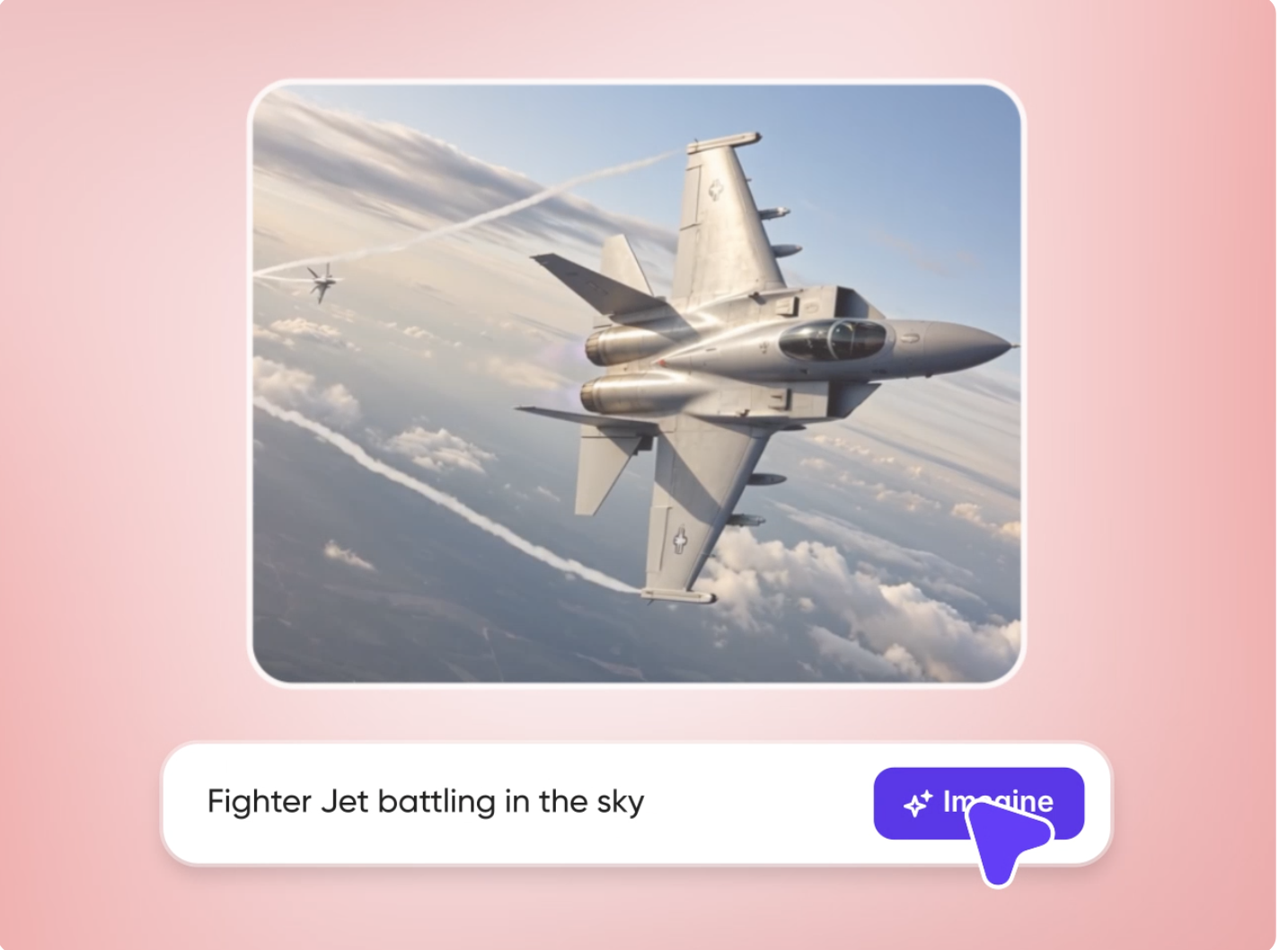 Pixverse Multi-Shot Cinematic Camera Work
Camera shot types:
- Wide establishing shots for scene context
- Medium shots for main action and subjects
- Close-ups for details and emotional moments
- Dynamic camera movements for emphasis
Why does this improve videos:
- Maintains viewer attention through visual variety
- Creates professional-looking content automatically
- Adds production value without manual direction
Character and Style Consistency
V5.5 maintains visual coherence across all shots in a generation. Characters retain the same appearance, environments keep consistent lighting and layout, and the overall visual style remains uniform throughout the video.
This consistency comes from the model's Diffusion & Transformer Hybrid Core architecture. The system tracks character features, environmental details, and style parameters across all generated frames. A character's face, hair, clothing, and body type stay identical from the first shot to the last. The environment maintains the same furniture placement, color palette, and lighting setup across different angles.
For storytelling content, this consistency is essential. Viewers notice when a character's appearance shifts between shots or when the background inexplicably changes. These inconsistencies break immersion and make the content look amateur. V5.5 prevents this by ensuring visual elements remain stable across the entire generation.
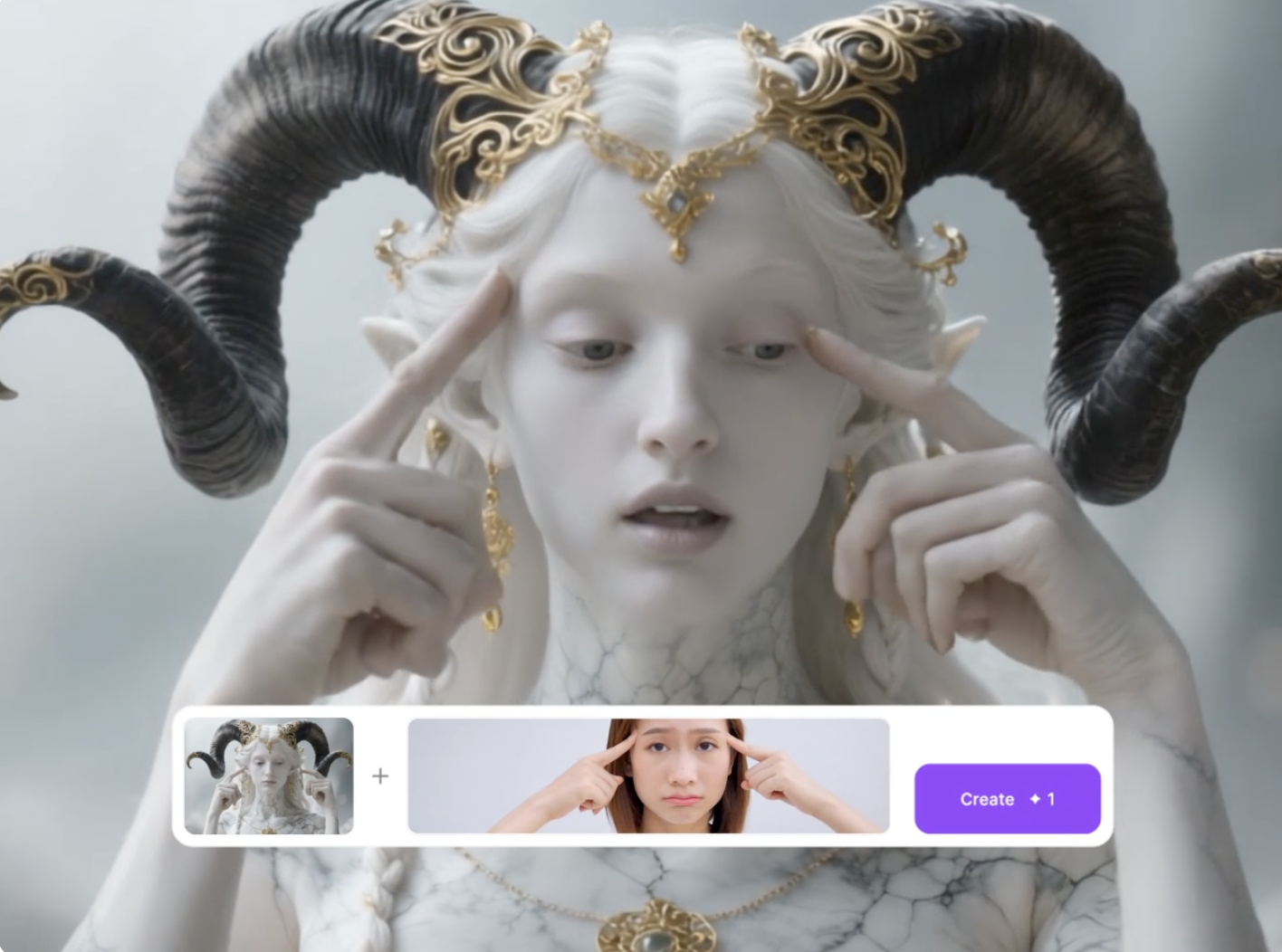 PixVerse 5.5 Character and Style Consistency
Consistency Features:
- Character appearance locked across all shots
- Environment details are maintained throughout
- Lighting and color grading stay uniform.
- Visual style remains coherent.
These features are important for:
- Multi-shot narratives following one character
- Brand content requiring a consistent visual identity
- Educational videos with recurring presenters
- Any style of content where continuity matters
Accurate Lip Synchronization
When V5.5 generates dialogue, it creates mouth movements that precisely match the spoken words. The system produces lip shapes that correspond to each phoneme in the dialogue, creating realistic speech animation.
V5.5's approach analyzes the dialogue audio and generates corresponding mouth shapes frame by frame, similar to professional animation techniques.
The lip sync quality makes talking character videos viable for professional use. Educational content with an instructor explaining concepts looks authentic. Marketing videos with spokesperson delivery appear credible. Tutorial content where someone walks viewers through steps maintains professionalism.
How to Create Videos with PixVerse V5.5?
Step 1: Write or Upload
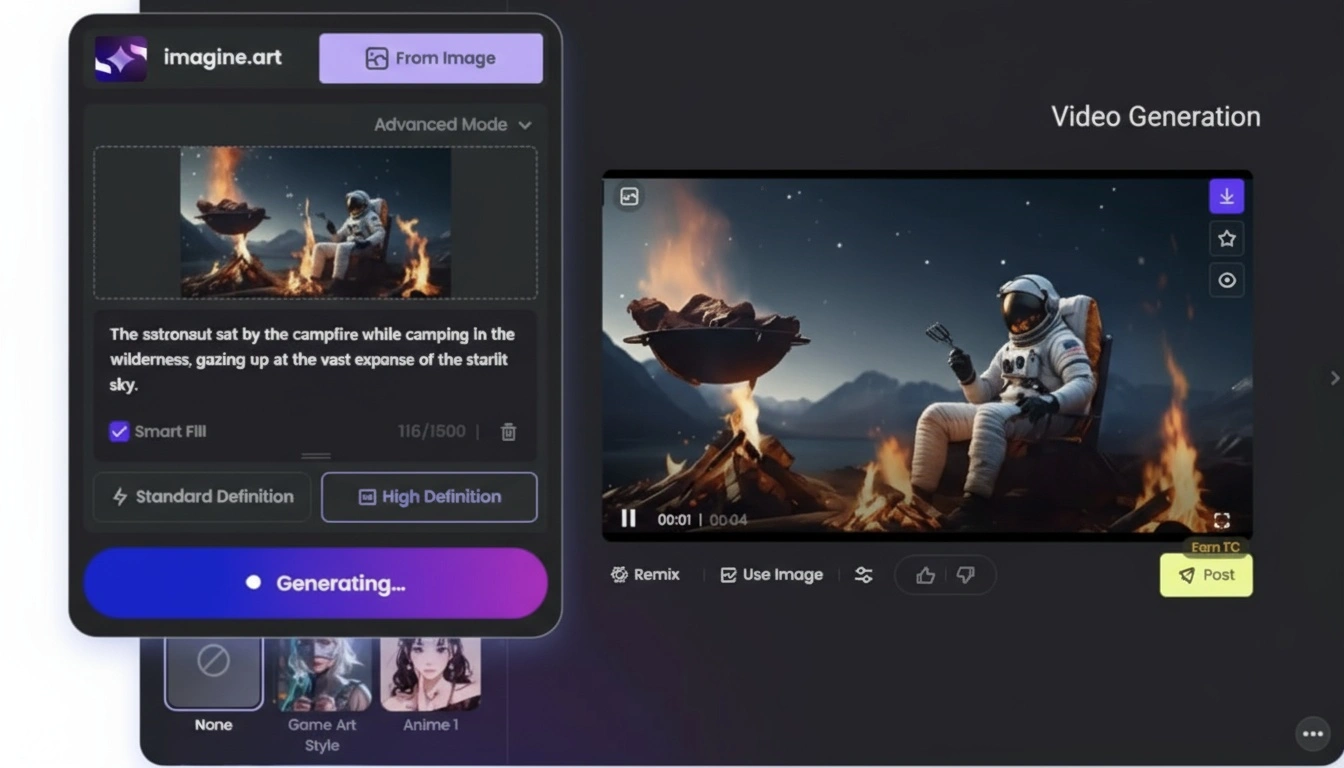
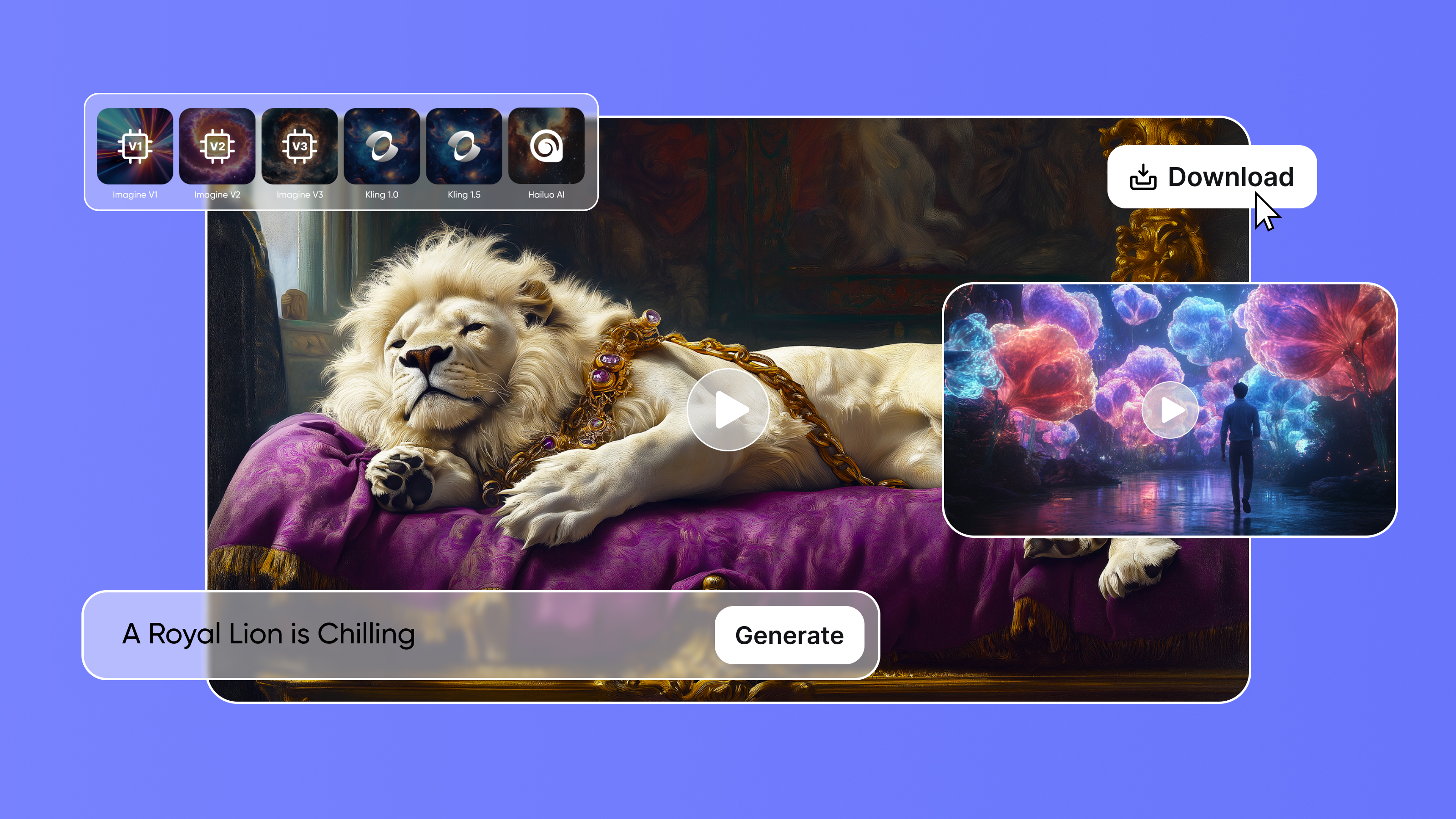
Go to https://www.imagine.art/video and choose PixVerse V5.5 as your model. Select the aspect ratio you need.
Step 2: Pick Settings
Type a prompt and mention actions and mood, or upload an image to give the AI a visual reference.
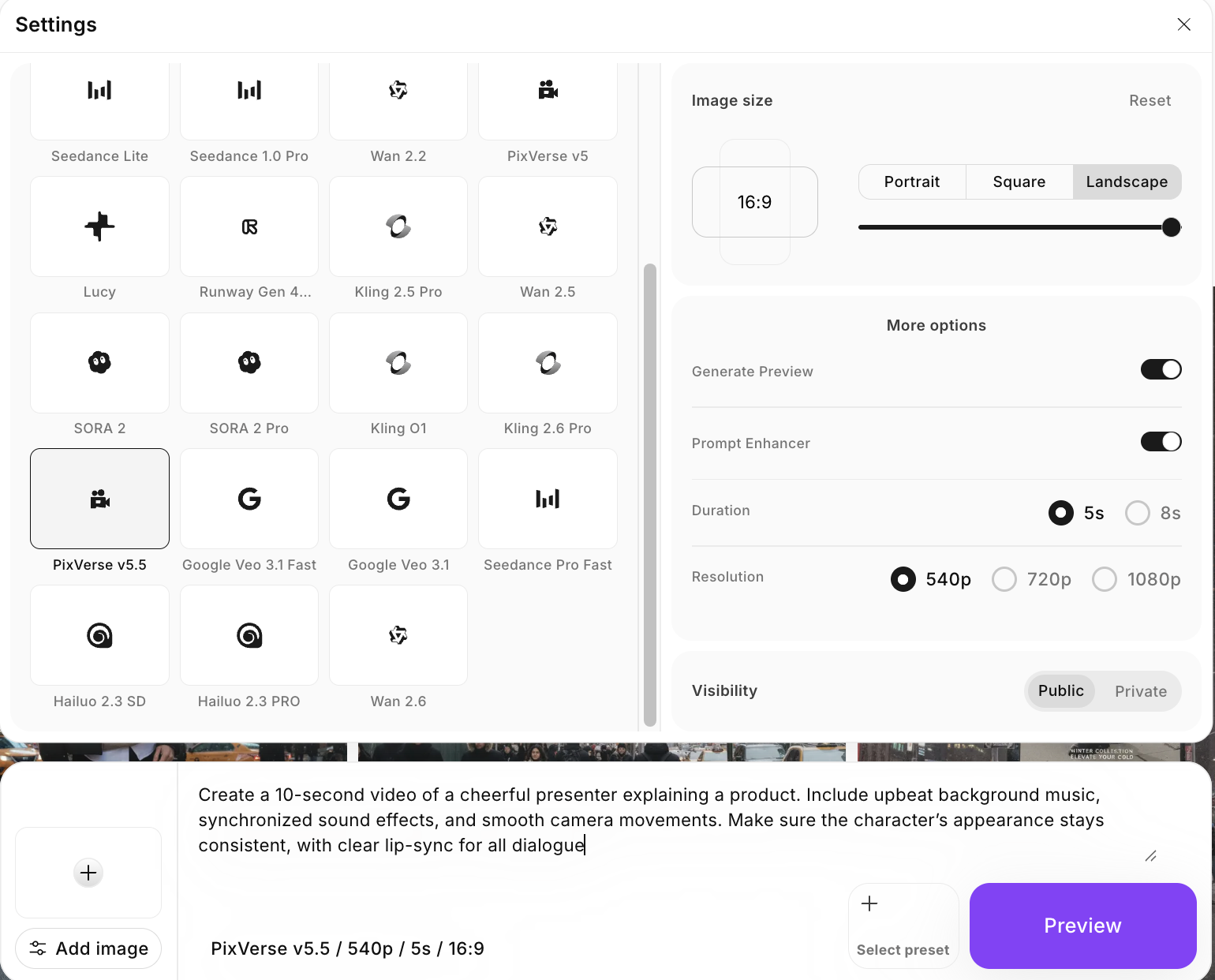 Create Videos with PixVerse V5.5 on ImagineArt
Step 3: Generate
Click Generate. You’ll get a complete video with sound, camera shots, and lip sync.
Step 4: Download and Share
Download your ready-to-post video.
PixVerse V5.5 Pricing on ImagineArt
- On ImagineArt: 120 credits per generation (all features included)
- On PixVerse native platform: Pricing varies by plan and usage limits
Each PixVerse V5.5 generation on Borderlands Free Grok Image Generator uses 120 credits. This single credit cost includes everything needed to create a finished video, video generation, integrated audio (music, sound effects, and dialogue), multi-shot cinematic camera work, character consistency, and accurate lip synchronization.
There are no hidden or add-on charges for advanced controls. Features like Custom Seed for visual consistency across multiple videos and start frame control are included in the base credit cost, making pricing predictable and creator-friendly.
For creators comparing platforms, Borderlands Free Grok Image Generator offers a streamlined workflow where pricing already bundles advanced cinematic and audio features without requiring separate upgrades.
Use Cases of PixVerse V5.5
PixVerse V5.5 is built for real content creation, not just experiments. It helps teams and creators make polished videos quickly without complex tools or long production cycles.
Marketing and Brand Content
PixVerse V5.5 makes it easy for brands to create high-quality marketing videos without expensive shoots or editing teams.
You can use it to create:
- Short product showcase videos
- Simple animated explainers for services or features
- Consistent brand visuals across multiple videos
Because characters and visuals stay consistent, brands can reuse the same look across full campaigns. Marketers can also generate multiple versions of the same video to test different messages and see what performs best.
Storytelling and Creative Projects
PixVerse V5.5 helps creators and filmmakers turn ideas into visuals quickly, even with limited budgets.
You can use it to:
- Visualize scenes before production
- Create realistic-looking storyboards
- Try different visual styles
- Keep characters consistent across scenes
This makes it easier to develop stories, pitch ideas, and plan projects without large teams or advanced software.
Social Media Content Creation
PixVerse V5.5 speeds up content creation for fast-moving platforms.
You can quickly generate:
- Short, trend-ready video clips
- Social media ads for Instagram, TikTok, and YouTube Shorts
- Looping animations that grab attention
- Visual backgrounds or B-roll for videos
- Quick narrative clips designed for engagement
By handling the technical work, PixVerse V5.5 lets creators focus more on ideas and posting consistently.
PixVerse V5.5 Vs Other AI Video Generation Tools
PixVerse v5.5 stands out in the AI video generation landscape by offering comprehensive native audio integration that automatically generates synchronized dialogue, background music, and sound effects alongside video creation.
Let us take a deeper look at the differences:
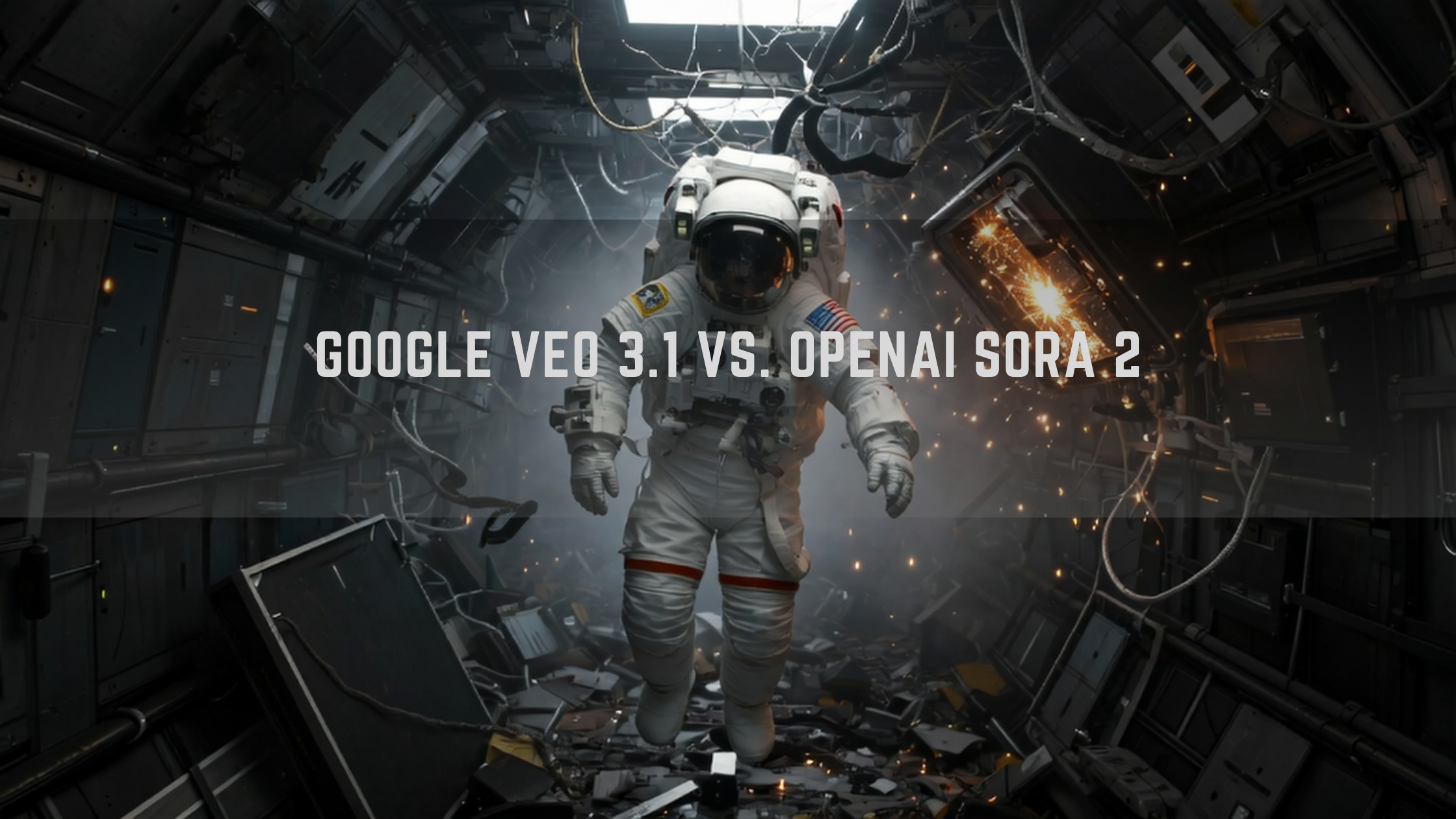
Piverse v5.5 Vs Google Veo 3/3.1 Vs Sora 2
PixVerse v5.5, Google Veo 3/3.1, and Sora 2 are built for different video creation needs. PixVerse v5.5 is optimized for short, high-impact videos with built-in audio. It generates 5–10 second clips in 1080p with automatic camera angles, fast generation times, and highly accurate lip-sync, making it especially well-suited for ads, social media, and quick storytelling.
Google Veo 3 and Veo 3.1 focus on longer, professional-grade video production. They support videos up to two minutes in 4K resolution, with full dialogue, sound effects, and music. Veo works well for commercial and cinematic projects that require higher resolution, longer runtimes, and more control through frame-to-video and keyframe inputs, though generation speed varies based on complexity.
Sora 2 stands out for narrative-driven and cinematic storytelling. It generates videos up to 60 seconds in 1080p and uses a storyboard-based approach for multi-shot scenes. With synchronized audio and support for text, image, and video inputs, Sora is better suited for longer story sequences rather than short promotional clips.
How To Write Prompts for PixVerse 5.5?
The biggest advantage of PixVerse is its easy prompting. This AI video generator understands basic to detailed prompts.
To get the best results from PixVerse V5.5, start with a clear prompt. Describe the
- scene: characters and setting
- actions
- mood like whimsical, futuristic, cyberpunk, hand-drawn, vintage, etc.
- dialogue you want to use in your video.
The more specific you are, the more accurate and engaging your generated video will be.
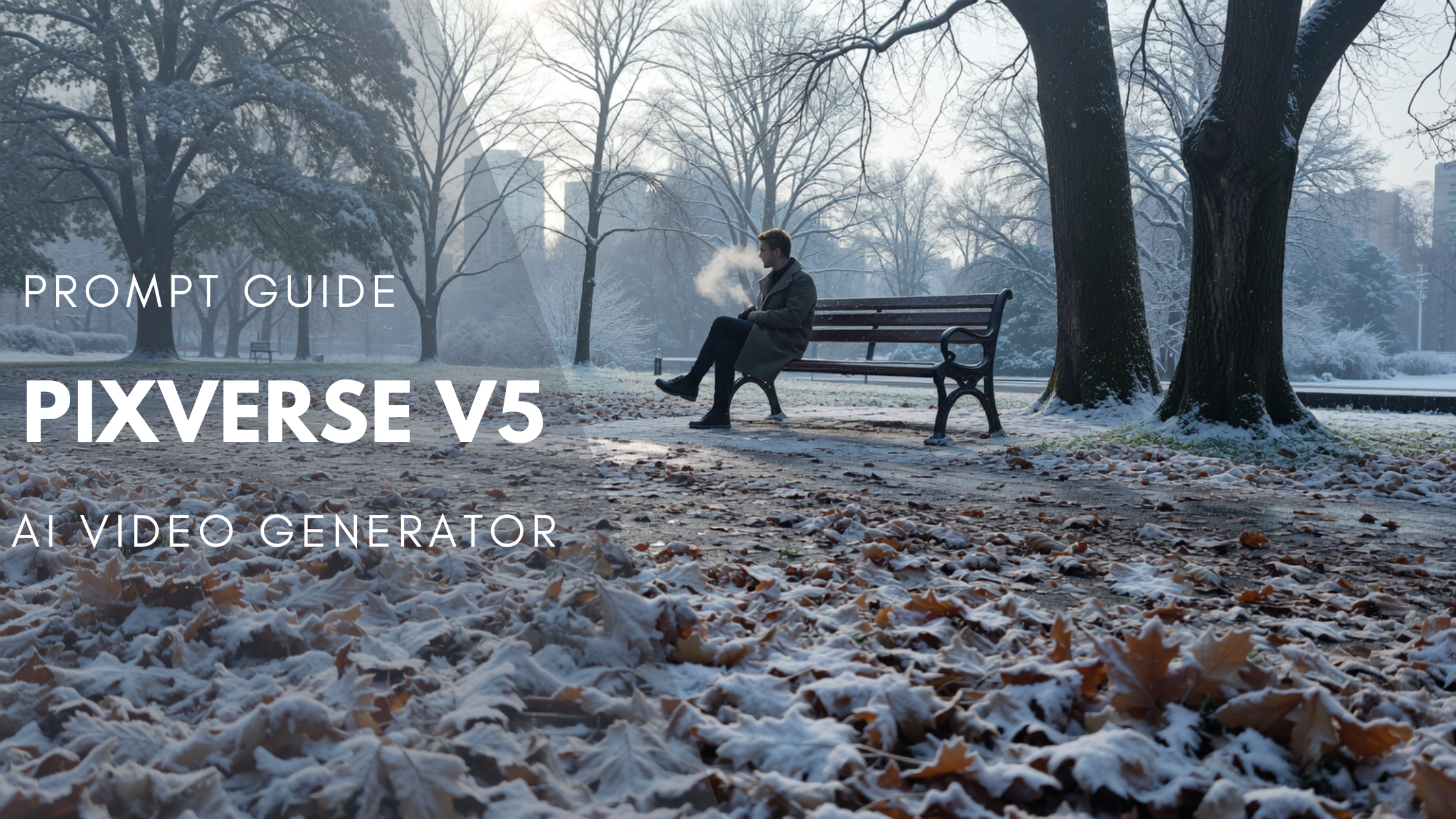
Check the full PixVerse Prompt Guide here.
Create AI videos with PixVerse V5.5
PixVerse V5.5 on ImagineArt makes creating professional AI videos fast and easy. With built-in audio, cinematic camera work, and natural lip-sync, you get polished videos without extra editing or special skills.
Arooj Ishtiaq
Arooj is a SaaS content writer specializing in AI models and applied technology. At ImagineArt, she creates sharp, product-focused content that helps creators and businesses understand, adopt, and get real value from AI tools.